Inventory: GCP: View service accounts resource access and privileges
Last updated: April 11, 2025
Run an IAM Assessment first
If you have not run assessment your data may not show properly
Make sure you’ve connected P0 to GCP and run at least one IAM Assessment for your organization. This populates P0 with all principals, grants, privileges, and resources.
Open the Inventory page
In P0, go to Inventory.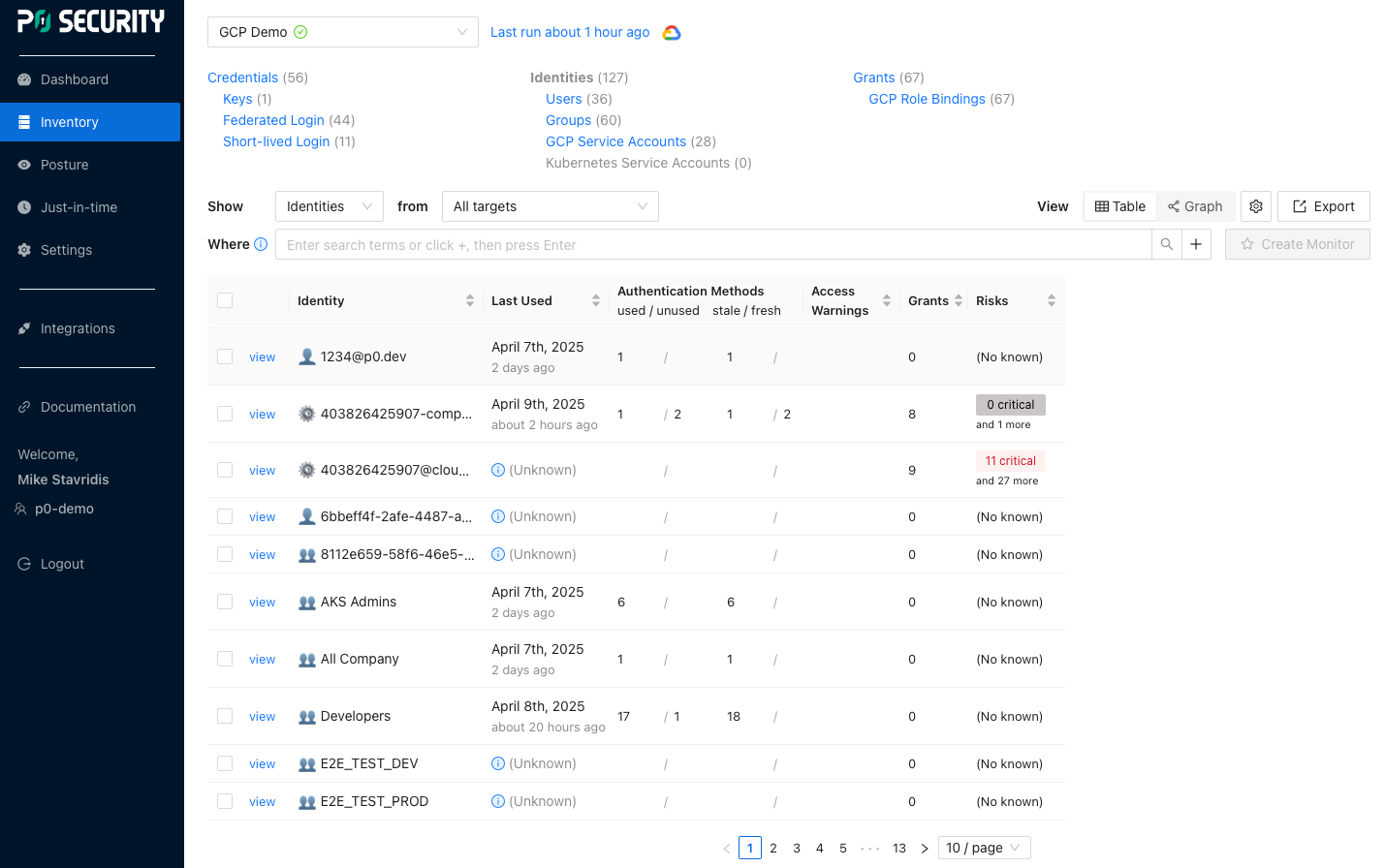
Set “from” to your project
Above the search box is the From control. Click it and pick your project.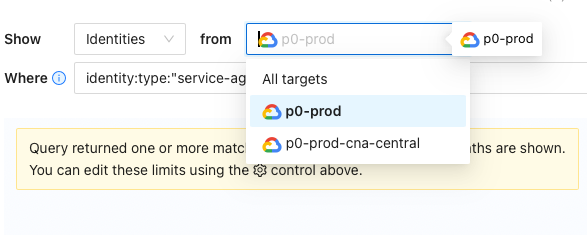
Set “show” to your Resource
Above the search box is the Show control. Click it and pick Resources this makes the results table list resource nodes (projects, buckets, etc.) instead of principals or grants.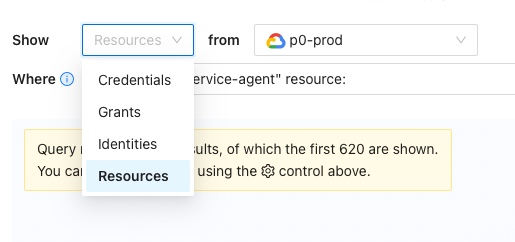
Enter your “Where” query
In the free‑form search bar, type:identity:type:"service-agent" resource:Click graph to change to visualization
this will change from table to visualization, for better understanding of your identity has access to.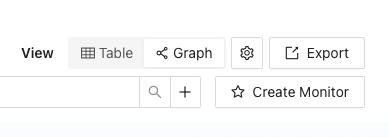
Run the search
Hit Enter or click the search icon. The table below now lists every GCP resource bound by those grants.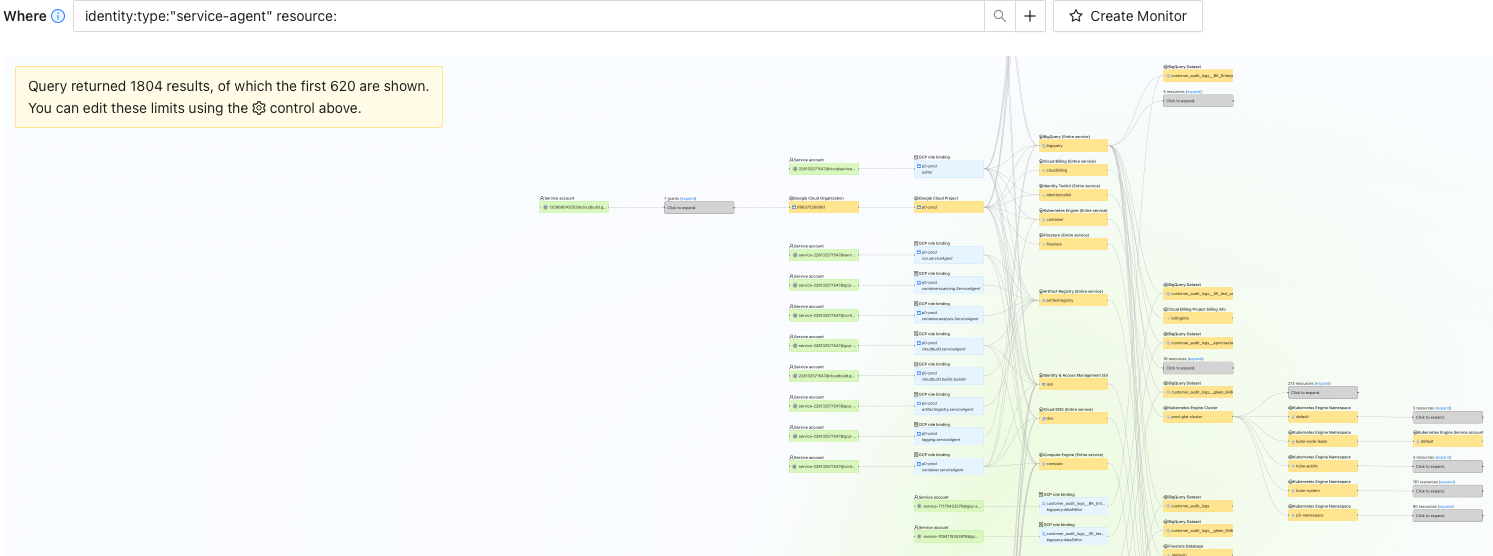
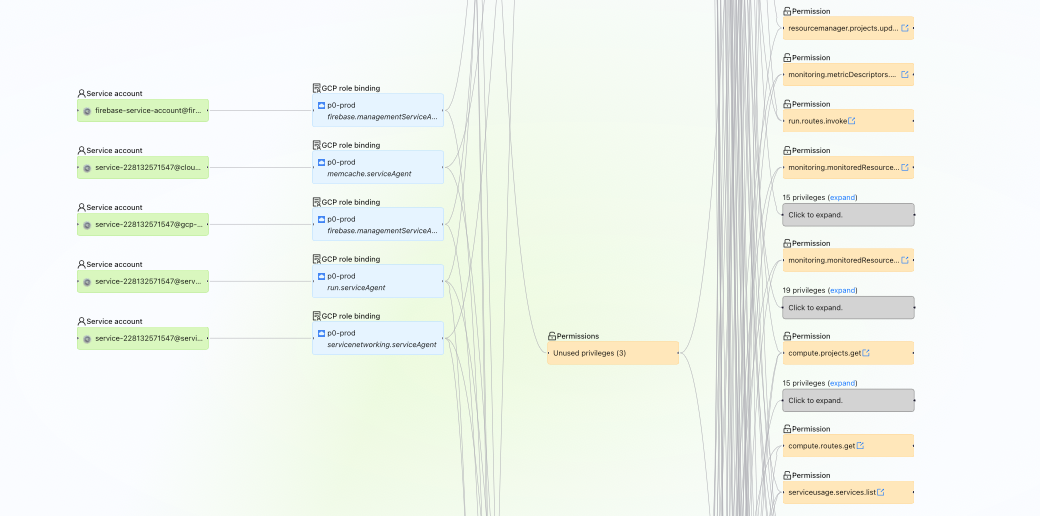
To view privileges of the service account
Ensure you change show: Identity in the drop down, as under resource this view will not display.
To see which specific GCP permissions for a specific identity:
identity:type:"service-agent" grant:->privilege:Ensure you change show: Identity in the drop down, as under resource this view will not display.
Tip: swap in any identity
You can replaceidentity:"<ACCOUNT>"with any other principal string—users, groups, service‑agents—to inventory their resource access the same way.