Integration: SSH: sudo privileges when using SSH integration
Last updated: April 11, 2025
Go to Integrations
From the left‑hand sidebar, click Integrations.Open the SSH integration
In the Resources section, find SSH and click on it.Enter SSH Management
On the SSH page you’ll see SSH Management listed under “Available components.” Click SSH Management.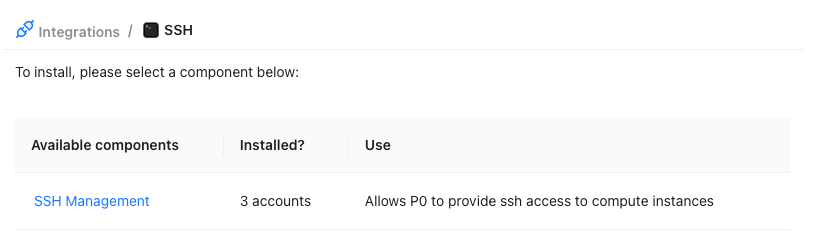
Pick your account
If you have more than one cloud account connected, select the account you want to configure.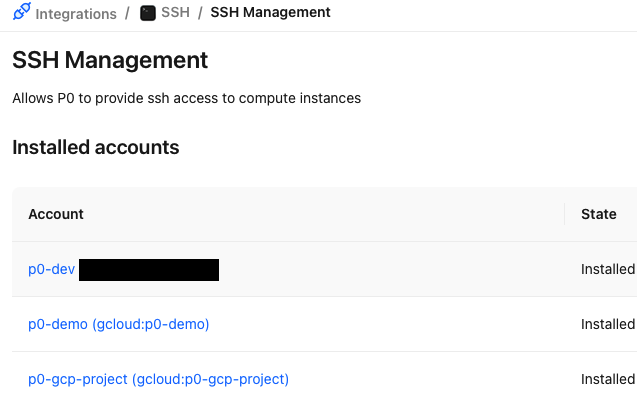
Enable sudo access
Scroll down to the Enable requesting sudo access toggle and click it so it switches on (blue). This immediately saves the setting and will grant sudo privileges on all future SSH sessions managed by P0.

(Optional) Set a grouping tag
If you only want to group instances by a specific tag, enter the tag key (for example, Stack) in the Grouping tagfield. Requests will then be scoped to instances sharing that tag value.